Structure Tab
Structure Tab
The Problem Form’s Structure tab lets you manage your story’s plot by associating a beat sheet with your problem and match the beats in the beats sheet to Scene or Problem story elements. A beat sheet is a list of the key emotional and plot points of a story. It breaks the story into “beats”: pivotal moments or events that drive the narrative forward. StoryCAD lets you choose from popular beat sheets. It will also allow you to create your own beat sheet.
Your story can (and usually will) have more than one problem, each with its own structure tab. But only one of these problems is the story problem, which is identified on the story overview It’s the spine of your story; when it’s resolved, your story is over. It’s
Plot is the sequence of events that make up your story. These events unfold in scenes, so the plot is a scene list. But where do your scenes come from, and how are they connected to each other? Beat sheets answer these questions.
A problem consists of a character’s goal, motivation, and conflict. The goal is what your character wants; the motivation is why they want it, and the conflict is what they’ll have to overcome to achieve the goal. Your characters’ efforts to resolve their problems are the events you describe in Scenes, and this tab is how you relate a Scene to this Problem by assigning it to beats.
but only one of your Problem story elements is the Story Problem. You identify the Story Problem by selecting one of your Problem pages on the Story Overview Form’s Premise tab. You can
Your story can (and usually will) have more than one Problem, but only one of your Problem story elements is the Story Problem. It’s the spine of your story; when it’s resolved, your story is over. Select one of your Problem pages from the drop-down list as the ‘Story Problem’ (here, ‘Hamlet wants to avenge his father’s murder’.)
A story usually contains multiple problems. The structure tab accounts for this by allowing you to attach another problem
Story structure starts with the Story Problem defined in the Story Overview form, and whose Premise summarizes the entire story. Your outline can contain other Problem story elements, which are complications, subplots, and sequences. Problem story elements are plotted as a set of Scene story elements that ultimately describe them. At that level, every scene, with its conflict or value exchange, also presents a problem to be solved. Finding your story problem, and building great scenes, are discussed elsewhere. Developing the middle structure of your story is what the Problem Structure tab is about. By putting a beat sheet on each problem story element, StoryCAD helps you to use them to structure your story. We recommend using simplified (‘mini’) beat sheets for subproblems, where a more complicated beat sheet can work well with the story problem (identified in the Story Overview.)
To use the Structure Tab, select a beat sheet for your problem using the Structure dropdown. We recommend starting at the top, with the story problem which you identified for your Story Overview.
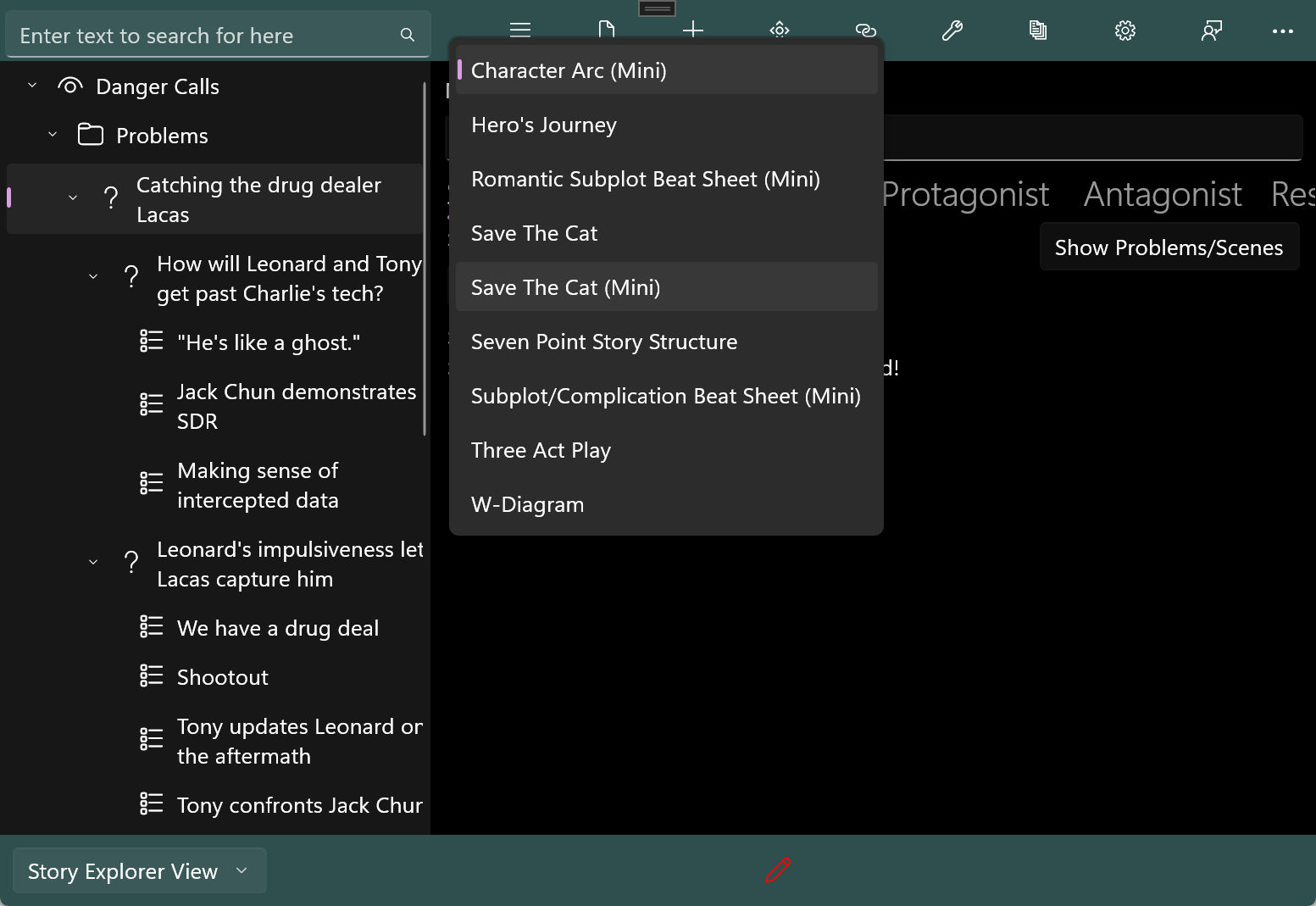
Here’s how you tie your plot-related story elements (scenes and problems) together: Pick a beat you want to identify, and click on Show Problems/Scenes to display a list of your outline’s problems and scenes. Select the problem or scene, and drag it to the beat’s drop area, the box which reads ‘No element Selected’: 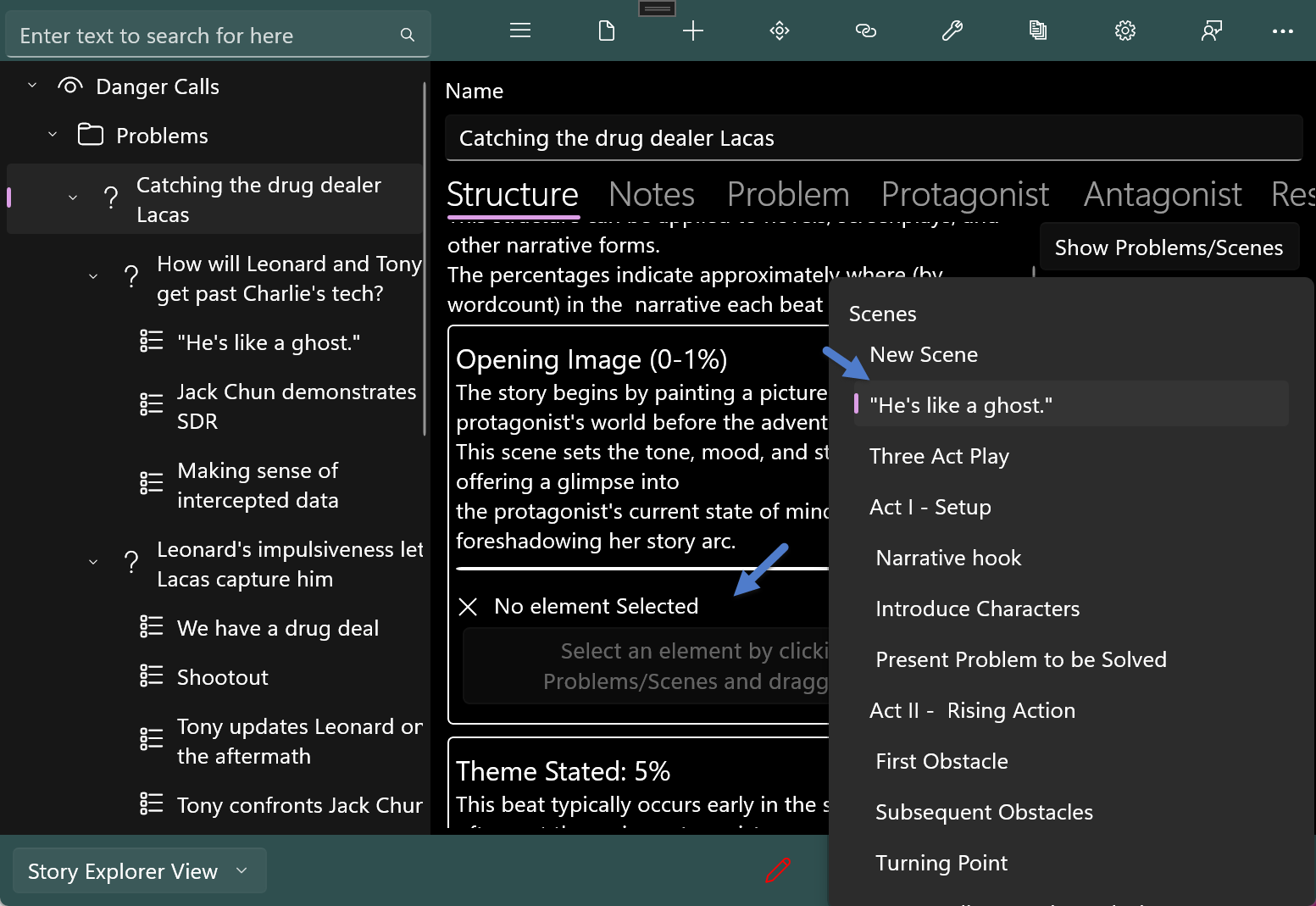 Repeat this process to fill in as much of the beat sheet as you like.
Here are a few things to keep in mind:
You can assign either sub-problems or scenes to a beat, and a beat sheet can contain a mixture of the two. Ultimately, you’re going to have to draft your story from the scenes in your outline, so when you’re assigning a sub-problem, you’re making a promise to yourself to plot that problem into scenes as well. You can use that problem’s Structure tab to do so. [NOTE: a discussion of the not-yet-written report goes here. The report should integrate the problems’ beat assignments.]
A scene can belong to more than one beat. This makes sense since a scene can and should accomplish more than one thing (refer to Purpose of Scene on the Scene form’s Development tab.). It is also possible to assign a scene to more than one problem, tying them together. However, you can only use a subproblem once, in one (parent) problem.
Not all beats in a beat sheet need to be used. However, when you’re reviewing your outline, you may find that a plot hole corresponds to a beat you haven’t used. Beat sheets help solve other plotting issues as well, such as lack of structure, pacing issues, weak character arcs, subplot integration, and weak endings.
Remember that a beat sheet is a pattern for your plotting, and once you pick it, you’re freezing an aspect of your story structure. This is especially important when dealing with subplot integration.
Additionally, selecting the reports menu option to generate a report for “Story Problem Structure” will create a report of all beats of the Story Problem specified within the Overview element and all attached problems to the beats within that element recursively. If your story does not a have a story problem set, this report will be blank.